
Key takeaways
- Find the best live web cameras for calls, lessons and streams, with sharp 1080p video, autofocus, light correction and clear built-in audio for home use.
What's inside
As an Amazon Associate I earn from qualifying purchases. This post may contain affiliate links at no extra cost to you.
The best live web cameras make the difference between a call where everyone can see the speaker clearly and a call where the picture is dark, soft and distracting. A built-in laptop camera sits in a bad spot with a small sensor, while a dedicated webcam brings a larger lens, autofocus, better light handling and a microphone placed to catch the voice. For live calls, online lessons, job interviews and streaming, that gap in quality is visible in the first seconds.
A live webcam has a harder job than a camera used for still photos. It must hold focus while the speaker moves, adjust when a cloud passes over the sun, keep the frame rate steady while the computer runs other apps, and do all of that for an hour without overheating or dropping the connection. The cameras in this guide were chosen because they handle those demands: 1080p resolution, autofocus, automatic light correction and a stable USB connection.
This guide compares two verified webcams listed on Amazon US, chosen because they cover the two main uses of a live camera: reliable everyday calls and higher-quality live streaming. The Logitech C920 is the proven all-rounder for meetings and lessons, while the Razer Kiyo Pro is built for streamers who broadcast from rooms with imperfect lighting. Only two webcams are listed here because only two models could be verified with a confirmed ASIN in this session; a third model, the Logitech C922x, was confirmed as a product and in stock at Amazon US, but no ASIN for the US listing appeared in the search results, so it was left out rather than listed with an unverified code.
What to Look For
Resolution and frame rate. Full HD 1080p at 30 frames per second is the standard for clear live video. A 60-frame rate makes movement smoother on a stream, but it needs more bandwidth and a USB 3.0 connection.
Autofocus. Autofocus keeps the speaker sharp when they lean in or move back. Fixed-focus webcams are cheaper, but they go soft the moment the speaker changes distance from the camera.
Low-light performance. A larger sensor gathers more light, so the picture stays clean in a dim room. An adaptive light sensor or a wide aperture helps more than any software filter.
Field of view. A 78-degree view frames one person neatly, while a wider view fits two people or a desk scene. An adjustable field of view lets one camera do both jobs.
Microphone quality. Built-in stereo microphones are enough for calls and lessons, but a dedicated microphone still sounds better for recorded content. Check whether the webcam has one microphone or two.
Mounting. A clip that fits a monitor or a laptop lid is essential, and a tripod thread adds flexibility for aiming at a whiteboard, a desk or a whole room.
Connection. USB 3.0 carries uncompressed video at full frame rate, while USB 2.0 is enough for 1080p at 30 frames per second. Check the port on the computer before choosing a camera that needs USB 3.0.
Privacy. A privacy shutter or a lens cover matters when the camera sits on a desk all day. If the camera has none, a simple cover or a software mute is the alternative.
Top Picks
Logitech HD Pro Webcam C920, Full HD 1080p Video Calling and Recording (960-000764)
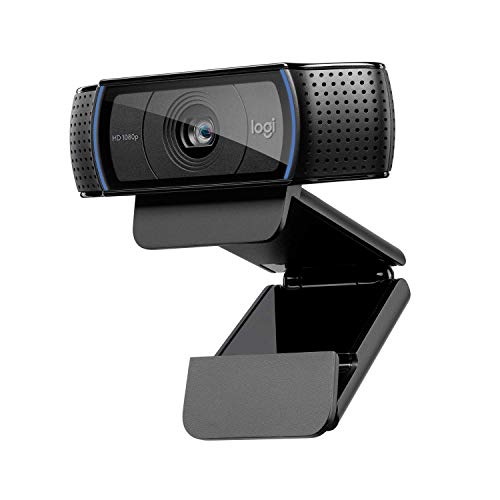
The Logitech C920 is a Full HD 1080p webcam with autofocus and automatic light correction, and it has been the default choice for video calls, live streams and online classes for years. The 1080p resolution at 30 frames per second gives a sharp, steady image on a call, and the autofocus keeps the speaker in focus when they lean in or move back from the desk. Automatic light correction adjusts the image when a room is dim or when a window sits behind the speaker, which is the most common lighting problem in home offices. Two built-in microphones capture stereo audio that is clear enough for meetings and calls without a separate microphone, although a dedicated microphone still sounds better for recorded content. The camera clips onto a monitor or a laptop lid and also mounts on a tripod, so it can be aimed at a desk, a whiteboard or a whole room. A five-foot cable gives enough slack to reach a computer under a desk, and the plug-and-play USB connection works with the common video call and streaming apps without extra software. The 78-degree field of view frames one person comfortably and keeps background clutter mostly out of shot. Its limits are the ones shared by every 1080p webcam: it cannot match a 4K camera for fine detail, and it has no built-in light, so a dark room still needs a lamp. For live calls, lessons and streams where reliability matters more than novelty, the C920 remains the safe, proven pick.
For everyday live calls, the C920 is the reliable pick: sharp 1080p video, autofocus, light correction and a microphone that covers meetings without extra gear.
Razer Kiyo Pro Streaming Webcam, Full HD 1080p 60FPS, Adaptive Light Sensor, HDR, Wide Angle Lens with Adjustable Field of View

The Razer Kiyo Pro is a streaming webcam built around a large adaptive light sensor, recording uncompressed Full HD 1080p video at 60 frames per second, with HDR available at 30 frames per second. The sensor is the heart of the camera: it is a Sony STARVIS type, designed to gather more light than a typical webcam sensor, so the image stays cleaner in dim rooms and the camera holds detail in mixed lighting where cheaper webcams turn grainy. The 60-frame rate makes movement look smooth on a live stream, which matters for gaming streams and for anyone who gestures while talking. HDR mode balances bright windows against a darker room, and the adjustable field of view can be set to 103, 90 or 80 degrees through the companion software, so the same camera frames a single streamer tightly or a wider desk scene. A built-in omnidirectional microphone is included, and the camera mounts on a monitor clip or a tripod. The USB 3.0 connection carries the uncompressed signal, which keeps quality high but needs a USB 3.0 port to work at full frame rate. There is no privacy shutter on this model, so a cover or a software mute is needed when the camera is not in use. For live streamers and creators who broadcast from a room with imperfect lighting, the Kiyo Pro is the strongest low-light webcam in this group.
For live streaming, the Kiyo Pro is the stronger camera: a large light sensor, 1080p at 60 frames per second, HDR and an adjustable field of view for broadcasts from dim rooms.
Comparison at a Glance
| Product | Video | Light handling | View and audio |
|—|—|—|—||
| Logitech C920 | 1080p at 30fps | Autofocus, light correction | 78-degree view, stereo mics |
| Razer Kiyo Pro | 1080p at 60fps, HDR at 30fps | Adaptive light sensor, STARVIS | 103/90/80-degree adjustable view |
Setting Up a Live Web Camera for the Best Picture
The camera itself is only half the picture. Light should come from in front of the speaker, not from behind, because a window behind the speaker turns the face into a silhouette no matter how good the camera is. A simple desk lamp or a window in front of the desk fixes most lighting problems before the camera has to. The camera should sit at eye level or slightly above, looking straight at the speaker, rather than looking up from a laptop on a desk, which is the angle that makes everyone look tired. A stack of books under a laptop or a small tripod under a webcam fixes the angle in a minute. The background should be tidy and uncluttered, with nothing bright or moving behind the speaker, and the microphone should be checked before an important call, not during it. A short test call with a friend reveals focus, framing and audio problems while there is still time to fix them.
Bandwidth matters too. A 1080p live stream needs a steady upload connection, and a shared home network with several people on video at once can cause dropped frames. Closing unused apps and browser tabs frees up the computer, and a wired network connection is steadier than Wi-Fi when the router is far away. If the picture stutters, dropping the camera to 720p in the app settings is a better fix than buying a new camera, because the problem is usually the connection, not the lens.
Common Mistakes with Live Web Cameras
The most common mistake is pointing the camera at a bright window, which makes the speaker a dark shape. The second is placing the camera too low, which creates an unflattering angle and shows the ceiling. The third is ignoring audio: viewers forgive a soft picture far more easily than they forgive echoey, distant sound, so sitting close to the microphone and choosing a quiet room matters as much as the camera. A fourth mistake is leaving the camera at its default wide view when only one person is on screen, which shrinks the speaker in the frame and shows too much background. Setting a narrower field of view, or moving the camera closer, fixes that in seconds. Finally, many people never update the camera software, which can add features such as a narrower field of view or better light handling. Checking for a software update after unboxing is a quick step that is easy to forget.
Frequently Asked Questions
What is the best live web camera for video calls?
The Logitech C920 in this guide is the most reliable choice for calls: 1080p video, autofocus, light correction and stereo microphones, with a clip that fits any monitor.
Is a 1080p webcam enough for live streaming?
Yes for most streams. A 1080p picture at 30 or 60 frames per second looks sharp on the platforms where streams are watched, and the connection matters more than a higher resolution.
Do I need a separate microphone with a webcam?
For calls and lessons, the built-in microphones on these cameras are enough. For recorded content or a professional stream, a separate microphone gives a clear step up in sound quality.
Why does my webcam look dark on calls?
The usual cause is light behind the speaker, such as a window, which makes the camera darken the face. Moving a lamp or a window in front of the speaker fixes it more reliably than any camera setting.
Can I use a webcam with a tripod?
Yes. Both cameras in this guide have a tripod thread, so they can be mounted on a small tripod for aiming at a whiteboard, a desk or a whole room.
Conclusion
The best live web cameras are the ones that hold focus, handle imperfect light and stay reliable for a whole call. The Logitech C920 covers everyday meetings, lessons and interviews with proven 1080p quality, while the Razer Kiyo Pro adds the low-light sensor and the 60-frame rate that live streamers need. Set the light in front, the camera at eye level, and test the sound before the call starts, and either camera will do its job well.
Disclosure: As an Amazon Associate, stanthonyscalgary.com earns from qualifying purchases.
Related guides
More from Amazon
Programs that pair well with the guide above. Offers and eligibility are set by Amazon and may change.
Free shipping on eligible items, Prime Video and more. Eligible new members can start with a free trial.
Start a Prime free trialAudiobooks and podcasts to listen to on the go. Eligible new members can start with a free trial.
Try Audible freeAd-free music streaming. Eligible new subscribers can start with a free trial.
Try Music Unlimited freeA free business account with business pricing and bulk-buying tools for work, shop or home office.
Create a business accountAs an Amazon Associate we earn from qualifying purchases.
Write Your Review
No reviews yet. Be the first to share your experience!